Prostir

Research-backed article

AI video editing with DaVinci Resolve: your next editor could be a conversation

AI video editing with DaVinci Resolve starts getting interesting when the assistant can actually work in your editor. Connect our Video Editing agent, give Claude Opus or a local ChatGPT/Codex client Computer Use, and turn a clear brief into a timeline you can inspect. Here is the setup, the video, and a first edit you can try.

Before you read

What gets published

A connected local editing setup, a reusable brief, and a review render with a concrete quality checklist.

Best for

Creators making talking-head videos, tutorials, Shorts and Reels on Windows or macOS.

Where the work happens

AI video editing with DaVinci Resolve · Claude Opus · ChatGPT / Codex · MCP · FFmpeg

01

Watch the workflow, then build your own

A chat that suggests cuts is useful. An assistant that can inspect footage, operate Resolve, and return a review render is a different workflow. The video below is the supplied demonstration; the numbered guide explains the connection steps so you can repeat the setup with your own media.

Keep your originals in a source folder and create a separate project and output folder for this first attempt. Define the audience, desired duration, destination platform, and what must stay in the story before asking for an edit.

Watch this video on YouTube
02

Meet your editing director in Prostir

Video Editing — DaVinci Resolve is our published Prostir Agent. It brings editing knowledge, shot planning, timing calculations, speech-pace analysis, timeline audits and motion checks into your AI client. Its OAuth-protected MCP address is shown below. You keep using your chosen model and your own local editor.

Ask knowledge_search for a Resolve technique, editing_timing_calculator for frame-accurate durations, editing_timeline_audit for gaps and overlaps, or editing_speech_pace_analyze for aligned-word pacing. These tools inspect supplied data. They do not themselves open Resolve, watch footage, hear audio, or prove that a render looks good.

03

Install DaVinci Resolve on Windows

Download DaVinci Resolve Studio from Blackmagic Design, choose the Windows installer, extract the archive, run the installer, and follow its driver and hardware requirements. Launch and activate Studio, then create a test project. This guide uses Studio 21.1's built-in MCP; a free or older installation may need a different, separately documented integration.

Import a short clip into the Media Pool. Choose your timeline resolution and frame rate before editing; a vertical Short might use 1080 × 1920, while a landscape tutorial might use 1920 × 1080. Match the actual source and delivery requirements. Save the project and keep a copy before giving an assistant edit access.

04

Give Opus or ChatGPT eyes and hands

Choose Claude Opus in a local Claude session, or use a local Codex client with your ChatGPT account. The model needs a client that supports local tools. For this workflow, enable Computer Use as well as MCP so the assistant can inspect native Resolve screens and handle controls missing from the tool API.

In Claude Desktop, open Settings → General → Computer use and enable it; approve DaVinci Resolve when prompted. Availability depends on your plan and OS. On macOS, also grant Accessibility and Screen Recording. In Codex, enable a compatible local Computer Use integration and its OS permissions. Ask it to show the open Resolve project before you allow changes. A browser-only ChatGPT conversation does not gain access to your desktop by receiving an MCP URL.

05

Install the local DaVinci MCP in the editor

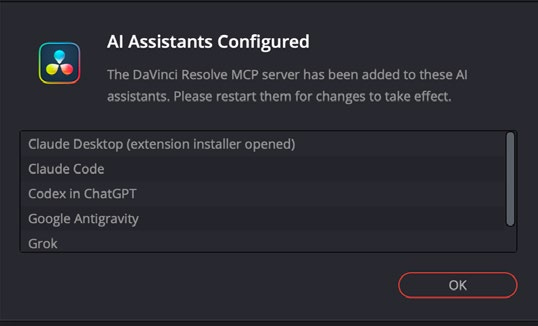
Install your local AI client first, then open Resolve Studio 21.1 and choose File → Setup AI Assistants…. Wait for AI Assistants Configured. This configures the built-in local MCP for detected clients; if the Claude Desktop extension installer opens, complete it. Restart the listed clients so they load the connection.

In a fresh local session, ask the assistant to list its Resolve tools and read the current project and timeline without modifying either. The confirmation below comes from the official 21.1 manual, page 4318; it illustrates the success state, not a screenshot of your Windows machine. If your client is absent, check the current manual and client settings rather than guessing an executable path.

DaVinci Resolve confirmation listing the AI assistants configured for its local MCP server
Official setup confirmation; interface language and detected clients may differ. Blackmagic Design manual, page 4318
06

Connect the Prostir Video Editing agent

Add a second connection for our agent: https://video-editing.ai.prostir.build/mcp. In Claude, use Settings → Connectors → Add custom connector and complete OAuth. In Codex, the commands below register the remote endpoint and start its sign-in flow. Client labels and access to custom connectors can vary by plan.

Keep both connections enabled in the editing session: Resolve supplies local execution; Prostir supplies the editing knowledge and validation tools. Test the agent with a knowledge_search request and inspect the discovered tool list. If authentication fails, complete the offered OAuth flow; never paste an account password into a prompt.

Codex: connect and sign in

codex mcp add video-editing --url https://video-editing.ai.prostir.build/mcp
codex mcp login video-editing
07

Install the FFmpeg skill from GitHub

The kajisho5/ffmpeg-skill repository gives a local assistant reusable media workflows: probe, trim, crop, captions, audio work, export and validation. It complements Resolve for file preparation and delivery. A Skill supplies instructions and scripts; it is not a second model or a remote editor.

Install Node.js for the npx installer, Python 3.9 or newer, and FFmpeg 5 or newer with ffprobe. On Windows, run winget install Gyan.FFmpeg and reopen the terminal. Install the Skill for Claude Code or Codex using the commands below, then run doctor. Inspect individual capability results: captions may require libass. The scripts run locally; optional speech-transcription models are a separate install.

Windows: install FFmpeg

winget install Gyan.FFmpeg

macOS: install FFmpeg

brew install ffmpeg-full

Claude Code

npx ffmpeg-skill

Codex

npx ffmpeg-skill --codex

Install for your local assistant

npx ffmpeg-skill doctor
npx ffmpeg-skill contract --json
08

Your first edit: one brief, one review timeline

Start with a 60–90 second talking-head clip and request a 30-second vertical draft. Give the assistant the exact source folder, output folder, message, and exclusions. Ask it to inspect the clip and report its frame rate, audio tracks, transcript availability and proposed cuts before editing.

After you accept the plan, create a new timeline, place the selected ranges, add justified B-roll and captions, and export a review file. Make changes in that draft. The prompt below gives the assistant a useful sequence without pretending it already knows the contents of an unseen clip.

A prompt for your first review cut

Use the Prostir Video Editing agent and my local DaVinci Resolve connection. Inspect the open project and source clip first. Propose a 30-second 9:16 edit with a clear hook, accurate captions and an intact ending. Wait for my approval of the plan. Create a new review timeline, preserve the original, export to my output folder, then inspect the render and tell me what still needs visual or audio review.
09

Make the edit feel intentional

A short video needs a clear opening, a complete point and a deliberate ending. Remove dead setup while keeping breath, emphasis and sentence boundaries. Use a transcript with real word timestamps for pace analysis; without those timestamps, ask for transcription or review the speech manually instead of inventing alignment.

Caption meaningful phrases, check reading speed, and keep text away from platform controls. Use B-roll to explain a claim, not to cover every second. For Fusion titles, keep graphics on separate tracks and verify the first frame, animation, stable hold and transparent exit in the actual render. Frame arithmetic and motion validation support review; they cannot replace watching and listening.

10

Use FFmpeg for the jobs around the timeline

Ask FFmpeg skill to probe files, prepare a crop or trim with a dry run, and export a platform preset to a separate file. On Windows, the sample uses PowerShell and the Codex installation under $HOME/.agents/skills. Claude Code installs under $HOME/.claude/skills; on macOS, use python3 if that is your Python command.

The example probes input.mp4, previews a 9:16 crop, exports the Reels preset, and checks an explicitly named result. Replace input.mp4 and export.mp4 with your actual paths; check the export command's reported output name. Finally inspect the rendered file, a contact sheet, and the audio. A contact sheet cannot reveal missing syllables, pops, silence or bad sync.

PowerShell: inspect, preview, export, check

python "$HOME/.agents/skills/ffmpeg-skill/scripts/probe.py" input.mp4 --compact
python "$HOME/.agents/skills/ffmpeg-skill/scripts/fit.py" input.mp4 --aspect 9:16 --fit crop --dry-run
python "$HOME/.agents/skills/ffmpeg-skill/scripts/export.py" input.mp4 --preset reels --json
python "$HOME/.agents/skills/ffmpeg-skill/scripts/check.py" export.mp4 --platform reels
python "$HOME/.agents/skills/ffmpeg-skill/scripts/look.py" export.mp4
11

When the assistant gets stuck

No Setup AI Assistants menu? Confirm Studio, the installed version, and the current Blackmagic manual. No Resolve tools after setup? Restart the client, check which clients the confirmation detected, and try a read-only project query. On Windows, use a local session with access to the same media paths as Resolve; a WSL path is not automatically a Windows path.

If the agent can plan but cannot cut, confirm the local Resolve connection separately from the remote Prostir connection. If a control is absent from MCP, use Computer Use to inspect and operate the editor, then verify the result. If doctor reports missing filters or a clip is offline, fix the specific dependency or media path before rerunning the edit.

12

FAQ: what actually counts as finished?

Can I use the free Resolve edition? This exact built-in-MCP setup is documented for Studio 21.1; do not assume edition parity. Is FFmpeg skill required for every cut? No, but it is useful for preparation, independent file checks and delivery. Does the Prostir agent replace Opus or ChatGPT? It adds knowledge and tools to the model in your client.

Finished means you watched the exported file end to end, listened to every cut, checked captions and synchronization, and confirmed duration, dimensions, frame rate and audio. Save the project, export settings and final file together. This setup guide is not a speed benchmark or a promise of automatic professional results; you decide whether the edit tells the story.

Solutions

AI agent builder for a product you can own and control

Build one managed Agent, test it with real questions, connect only the knowledge and actions it needs, then publish it privately or make a separate deliberate public-access choice. Prostir provides the hosted address, protected access, and delivery into supported AI clients without making you assemble that product backend first.

Solutions

Turn the useful demo into an owned Agent

Tell us the job, the people who should use it, the source material it needs, and what it must never do. We will help you map a first Agent release that can be tested honestly.